3台のRaspberry PiでおうちKubernetesを構築した
なぜ
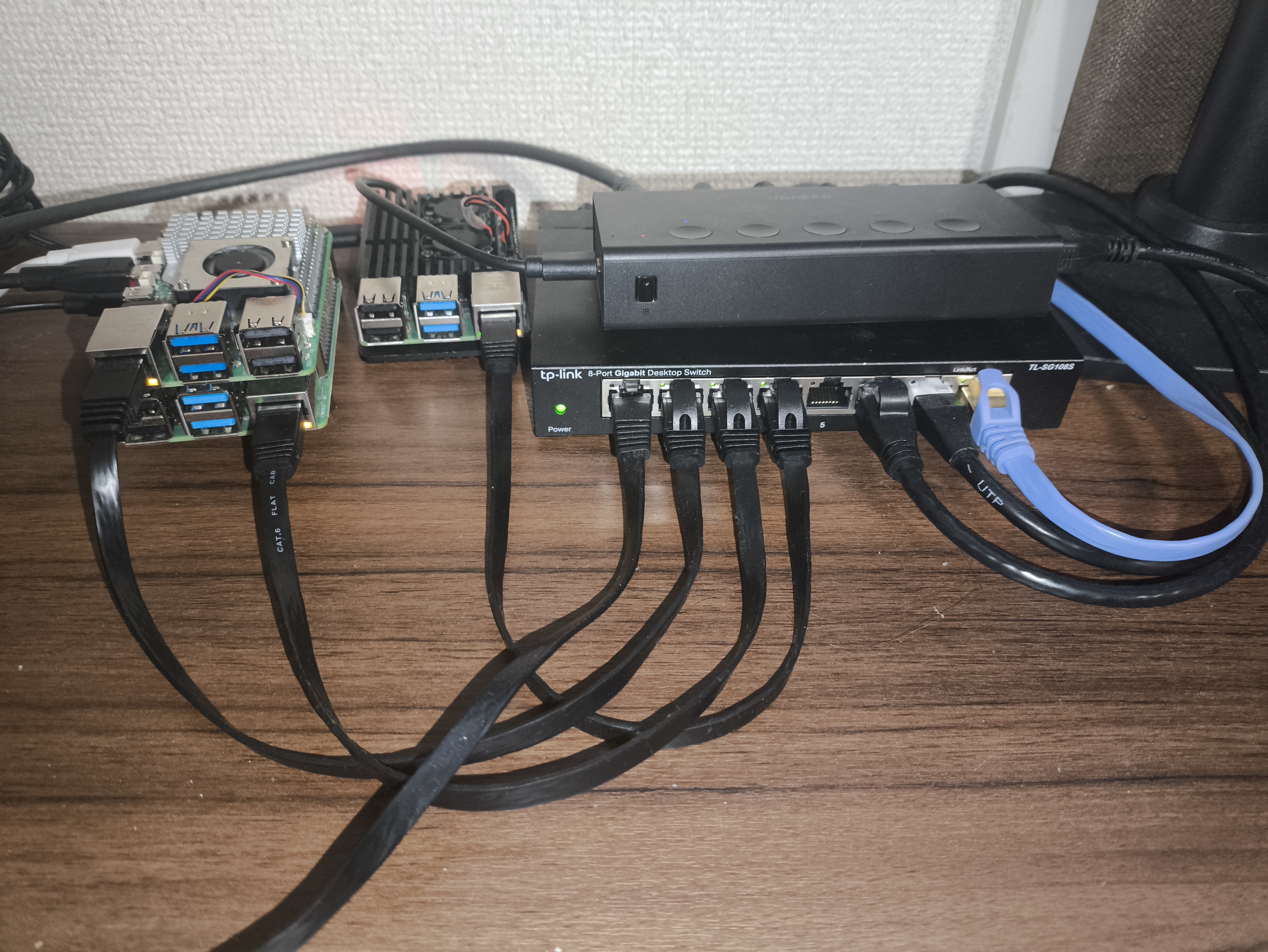
最近、いろんな大きなサービスがKubernetesで動いているんだなぁと思って、自分で基盤を構築してみたいと思ったときにちょうど家に3台ほどRaspberry Piがあったので、構築した。
使ったもの
ハードウェア
- Raspberry Pi 5 (Sapphire)
- RAM 8GB
- microSD 128GB
- Control Plane
- Raspberry Pi 4B (Emerald)
- RAM 8GB
- microSD 128GB
- Worker Node 1
- Raspberry Pi 4B (Ruby)
- RAM 4GB
- microSD 32GB
- Worker Node 2
ソフトウェア
- Ubuntu Server 24.04.1
- Kubernetes: v1.32
- CRI-O: v1.32
- calico: v3.29.1
Raspberry Piのセットアップ
今回はWindowsでRaspberry Pi Imagerを使った。ホスト名、authorized_keysなど設定してからmicroSDにimageを焼けるので便利。bootしたら、ssh, ipアドレスを設定する。これ以降特に何も言及がなければ3台に同じ操作をしている。
sudo apt update && sudo apt upgrade -y
sudo vim /etc/ssh/sshd_config
sudo vim /etc/netplan/99-config.yaml
sudo netplan applyPermitRootLogin no
PasswordAuthentication nonetwork:
version: 2
ethernets:
eth0:
dhcp4: false
addresses:
- 192.168.1.110/24 # Raspberry PiのIPアドレス
routes:
- to: default
via: 192.168.1.1 # ルーターのIPアドレスCRI-O, Kubernetesの導入
コンテナランタイムについて
まず、CRI-Oのドキュメントに従って、コンテナランタイムであるCRI-OとそのオーケストレータのKubernetesの最新のバージョンを確認してaptパッケージを追加する。 https://github.com/cri-o/packaging/blob/main/README.md/#distributions-using-rpm-packages

Installing kubeadm
This page shows how to install the kubeadm toolbox. For information on how to create a cluster with kubeadm once you have performed this installation process, see the Creating a cluster with kubeadm page. This installation guide is for Kubernetes v1.37. If you want to use a different Kubernetes version, please refer to the following pages instead: Installing kubeadm (Kubernetes v1.36) Installing kubeadm (Kubernetes v1.35) Installing kubeadm (Kubernetes v1.34) Installing kubeadm (Kubernetes v1.33) Before you begin A compatible Linux host. The Kubernetes project provides generic instructions for Linux distributions based on Debian and Red Hat, and those distributions without a package manager. 2 GB or more of RAM per machine (any less will leave little room for your apps). 2 CPUs or more for control plane machines. Full network connectivity between all machines in the cluster (public or private network is fine). Unique hostname, MAC address, and product_uuid for every node. See here for more details. Certain ports are open on your machines. See here for more details. Note:The kubeadm installation is done via binaries that use dynamic linking and assumes that your target system provides glibc. This is a reasonable assumption on many Linux distributions (including Debian, Ubuntu, Fedora, CentOS, etc.) but it is not always the case with custom and lightweight distributions which don't include glibc by default, such as Alpine Linux. The expectation is that the distribution either includes glibc or a compatibility layer that provides the expected symbols. Check your OS versionNote: This section links to third party projects that provide functionality required by Kubernetes. The Kubernetes project authors aren't responsible for these projects, which are listed alphabetically. To add a project to this list, read the content guide before submitting a change. More information. Linux Windows The kubeadm project supports LTS kernels. See List of LTS kernels. You can get the kernel version using the command uname -r For more information, see Linux Kernel Requirements.
kubernetes.io$ echo "KUBERNETES_VERSION=v1.32
CRIO_VERSION=v1.32" | tee -a ~/.bashrc
$ source ~/.bashrc
$ curl -fsSL https://pkgs.k8s.io/core:/stable:/$KUBERNETES_VERSION/deb/Release.key |
sudo gpg --dearmor -o /etc/apt/keyrings/kubernetes-apt-keyring.gpg
$ echo "deb [signed-by=/etc/apt/keyrings/kubernetes-apt-keyring.gpg] https://pkgs.k8s.io/core:/stable:/$KUBERNETES_VERSION/deb/ /" |
sudo tee /etc/apt/sources.list.d/kubernetes.list
$ curl -fsSL https://pkgs.k8s.io/addons:/cri-o:/stable:/$CRIO_VERSION/deb/Release.key |
sudo gpg --dearmor -o /etc/apt/keyrings/cri-o-apt-keyring.gpg
$ echo "deb [signed-by=/etc/apt/keyrings/cri-o-apt-keyring.gpg] https://pkgs.k8s.io/addons:/cri-o:/stable:/$CRIO_VERSION/deb/ /" |
sudo tee /etc/apt/sources.list.d/cri-o.listそしてcri-oコマンドとKubernetesに必要なkubelet, kubeadm, kubectlの三つのコマンドをインストールして、後者のバージョンを固定する。
$ sudo apt update && sudo apt install cri-o kubelet kubeadm kubectl
$ sudo apt-mark hold kubelet kubeadm kubectlスワップをオフにしたりカーネルモジュールをロードしてカーネルパラメータを設定する。
$ sudo systemctl start crio.service
$ sudo swapoff -a
$ lsmod | grep -e br_netfilter -e overlay
overlay               192512  0

$ echo "overlay
br_netfilter
" | sudo tee /etc/modules-load.d/k8s.conf

$ sudo modprobe br_netfilter
$ lsmod | grep -e br_netfilter -e overlay
br_netfilter           32768  0
bridge                372736  1 br_netfilter
overlay               192512  0

$ sudo sysctl -w net.ipv4.ip_forward=1
net.ipv4.ip_forward = 1

$ echo "net.bridge.bridge-nf-call-iptables = 1
net.bridge.bridge-nf-call-iptables = 1
net.ipv4.ip_forward = 1
" | sudo tee /etc/sysctl.d/k8s.conf

$ sudo sysctl --system

$ sysctl net.bridge.bridge-nf-call-iptables net.bridge.bridge-nf-call-ip6tables net.ipv4.ip_forward
net.bridge.bridge-nf-call-iptables = 1
net.bridge.bridge-nf-call-ip6tables = 1
net.ipv4.ip_forward = 1ここからはControlPlaneでクラスタを構成して、CNIを入れて他のノードが参加する準備をしていく。
まず、CRI-Oのソケットが存在していることを確認して、kubeadm initする。
$ ls /var/run/crio/crio.sock -la
srw-rw---- 1 root root 0 Dec 25 02:30 /var/run/crio/crio.sock
$ sudo kubeadm init --cri-socket=/var/run/crio/crio.sock --pod-network-cidr=192.168.0.0/16
W1226 03:06:17.944044   80200 initconfiguration.go:126] Usage of CRI endpoints without URL scheme is deprecated and can cause kubelet errors in the future. Automatically prepending scheme "unix" to the "criSocket" with value "/var/run/crio/crio.sock". Please update your configuration!
[init] Using Kubernetes version: v1.32.0
[preflight] Running pre-flight checks
[preflight] Pulling images required for setting up a Kubernetes cluster
[preflight] This might take a minute or two, depending on the speed of your internet connection
[preflight] You can also perform this action beforehand using 'kubeadm config images pull'
[certs] Using certificateDir folder "/etc/kubernetes/pki"
[certs] Generating "ca" certificate and key
[certs] Generating "apiserver" certificate and key
[certs] apiserver serving cert is signed for DNS names [kubernetes kubernetes.default kubernetes.default.svc kubernetes.default.svc.cluster.local sapphire] and IPs [10.96.0.1 192.168.1.110]
[certs] Generating "apiserver-kubelet-client" certificate and key
[certs] Generating "front-proxy-ca" certificate and key
[certs] Generating "front-proxy-client" certificate and key
[certs] Generating "etcd/ca" certificate and key
[certs] Generating "etcd/server" certificate and key
[certs] etcd/server serving cert is signed for DNS names [localhost sapphire] and IPs [192.168.1.110 127.0.0.1 ::1]
[certs] Generating "etcd/peer" certificate and key
[certs] etcd/peer serving cert is signed for DNS names [localhost sapphire] and IPs [192.168.1.110 127.0.0.1 ::1]
[certs] Generating "etcd/healthcheck-client" certificate and key
[certs] Generating "apiserver-etcd-client" certificate and key
[certs] Generating "sa" key and public key
[kubeconfig] Using kubeconfig folder "/etc/kubernetes"
[kubeconfig] Writing "admin.conf" kubeconfig file
[kubeconfig] Writing "super-admin.conf" kubeconfig file
[kubeconfig] Writing "kubelet.conf" kubeconfig file
[kubeconfig] Writing "controller-manager.conf" kubeconfig file
[kubeconfig] Writing "scheduler.conf" kubeconfig file
[etcd] Creating static Pod manifest for local etcd in "/etc/kubernetes/manifests"
[control-plane] Using manifest folder "/etc/kubernetes/manifests"
[control-plane] Creating static Pod manifest for "kube-apiserver"
[control-plane] Creating static Pod manifest for "kube-controller-manager"
[control-plane] Creating static Pod manifest for "kube-scheduler"
[kubelet-start] Writing kubelet environment file with flags to file "/var/lib/kubelet/kubeadm-flags.env"
[kubelet-start] Writing kubelet configuration to file "/var/lib/kubelet/config.yaml"
[kubelet-start] Starting the kubelet
[wait-control-plane] Waiting for the kubelet to boot up the control plane as static Pods from directory "/etc/kubernetes/manifests"
[kubelet-check] Waiting for a healthy kubelet at http://127.0.0.1:10248/healthz. This can take up to 4m0s
[kubelet-check] The kubelet is healthy after 500.944574ms
[api-check] Waiting for a healthy API server. This can take up to 4m0s
[api-check] The API server is healthy after 13.50209743s
[upload-config] Storing the configuration used in ConfigMap "kubeadm-config" in the "kube-system" Namespace
[kubelet] Creating a ConfigMap "kubelet-config" in namespace kube-system with the configuration for the kubelets in the cluster
[upload-certs] Skipping phase. Please see --upload-certs
[mark-control-plane] Marking the node sapphire as control-plane by adding the labels: [node-role.kubernetes.io/control-plane node.kubernetes.io/exclude-from-external-load-balancers]
[mark-control-plane] Marking the node sapphire as control-plane by adding the taints [node-role.kubernetes.io/control-plane:NoSchedule]
[bootstrap-token] Using token: irpqxh.pop58b4ha1584q6w
[bootstrap-token] Configuring bootstrap tokens, cluster-info ConfigMap, RBAC Roles
[bootstrap-token] Configured RBAC rules to allow Node Bootstrap tokens to get nodes
[bootstrap-token] Configured RBAC rules to allow Node Bootstrap tokens to post CSRs in order for nodes to get long term certificate credentials
[bootstrap-token] Configured RBAC rules to allow the csrapprover controller automatically approve CSRs from a Node Bootstrap Token
[bootstrap-token] Configured RBAC rules to allow certificate rotation for all node client certificates in the cluster
[bootstrap-token] Creating the "cluster-info" ConfigMap in the "kube-public" namespace
[kubelet-finalize] Updating "/etc/kubernetes/kubelet.conf" to point to a rotatable kubelet client certificate and key
[addons] Applied essential addon: CoreDNS
[addons] Applied essential addon: kube-proxy

Your Kubernetes control-plane has initialized successfully!

To start using your cluster, you need to run the following as a regular user:

  mkdir -p $HOME/.kube
  sudo cp -i /etc/kubernetes/admin.conf $HOME/.kube/config
  sudo chown $(id -u):$(id -g) $HOME/.kube/config

Alternatively, if you are the root user, you can run:

  export KUBECONFIG=/etc/kubernetes/admin.conf

You should now deploy a pod network to the cluster.
Run "kubectl apply -f [podnetwork].yaml" with one of the options listed at:
  https://kubernetes.io/docs/concepts/cluster-administration/addons/

Then you can join any number of worker nodes by running the following on each as root:

kubeadm join 192.168.1.110:6443 --token irpqxh.pop58b4ha1584q6w \
--discovery-token-ca-cert-hash sha256:b406fcfe57a68f99fb82412db52d0206d6218205dc8719425bfc11c19e6f4750すると、いくつかコマンドが出力されるので実行して$HOME/.kube/configを作成しておく。
$ mkdir -p $HOME/.kube
$ sudo cp -i /etc/kubernetes/admin.conf $HOME/.kube/config
$ sudo chown $(id -u):$(id -g) $HOME/.kube/config
$ ls -la ~/.kube/config
-rw------- 1 asuto153 asuto153 5657 Dec 26 03:07 /home/asuto153/.kube/configこれでクラスタが初期化できたはずなので、そうしたらnodeやpodが正常に認識されていそうか確認しておく。
$ kubectl get nodes
NAME       STATUS     ROLES           AGE   VERSION
sapphire   NotReady   control-plane   96s   v1.32.0

$ kubectl get pods
No resources found in default namespace.

$ kubectl get pods -n kube-system
NAME                               READY   STATUS    RESTARTS   AGE
coredns-668d6bf9bc-g86dg           0/1     Pending   0          12m
coredns-668d6bf9bc-pwztr           0/1     Pending   0          12m
etcd-sapphire                      1/1     Running   0          12m
kube-apiserver-sapphire            1/1     Running   0          12m
kube-controller-manager-sapphire   1/1     Running   0          12m
kube-proxy-g6ktm                   1/1     Running   0          12m
kube-scheduler-sapphire 1/1 Running 0 12mCalicoの導入
次に、以下のドキュメントに従ってノード間の通信を行うためのCNI(Container Network Interface)プラグインであるCalicoを導入していく。

Calico quickstart guide | Calico Documentation
Install Calico Open Source on a single-host Kubernetes cluster in roughly 15 minutes — the standard starter path for trying Calico networking and network policy on a development machine.
docs.tigera.ioまずはCalicoを入れるためのtigera-operatorを導入する。
$ kubectl create -f https://raw.githubusercontent.com/projectcalico/calico/v3.29.1/manifests/tigera-operator.yaml
namespace/tigera-operator created
customresourcedefinition.apiextensions.k8s.io/bgpconfigurations.crd.projectcalico.org created
customresourcedefinition.apiextensions.k8s.io/bgpfilters.crd.projectcalico.org created
customresourcedefinition.apiextensions.k8s.io/bgppeers.crd.projectcalico.org created
customresourcedefinition.apiextensions.k8s.io/blockaffinities.crd.projectcalico.org created
customresourcedefinition.apiextensions.k8s.io/caliconodestatuses.crd.projectcalico.org created
customresourcedefinition.apiextensions.k8s.io/clusterinformations.crd.projectcalico.org created
customresourcedefinition.apiextensions.k8s.io/felixconfigurations.crd.projectcalico.org created
customresourcedefinition.apiextensions.k8s.io/globalnetworkpolicies.crd.projectcalico.org created
customresourcedefinition.apiextensions.k8s.io/globalnetworksets.crd.projectcalico.org created
customresourcedefinition.apiextensions.k8s.io/hostendpoints.crd.projectcalico.org created
customresourcedefinition.apiextensions.k8s.io/ipamblocks.crd.projectcalico.org created
customresourcedefinition.apiextensions.k8s.io/ipamconfigs.crd.projectcalico.org created
customresourcedefinition.apiextensions.k8s.io/ipamhandles.crd.projectcalico.org created
customresourcedefinition.apiextensions.k8s.io/ippools.crd.projectcalico.org created
customresourcedefinition.apiextensions.k8s.io/ipreservations.crd.projectcalico.org created
customresourcedefinition.apiextensions.k8s.io/kubecontrollersconfigurations.crd.projectcalico.org created
customresourcedefinition.apiextensions.k8s.io/networkpolicies.crd.projectcalico.org created
customresourcedefinition.apiextensions.k8s.io/networksets.crd.projectcalico.org created
customresourcedefinition.apiextensions.k8s.io/tiers.crd.projectcalico.org created
customresourcedefinition.apiextensions.k8s.io/adminnetworkpolicies.policy.networking.k8s.io created
customresourcedefinition.apiextensions.k8s.io/apiservers.operator.tigera.io created
customresourcedefinition.apiextensions.k8s.io/imagesets.operator.tigera.io created
customresourcedefinition.apiextensions.k8s.io/installations.operator.tigera.io created
customresourcedefinition.apiextensions.k8s.io/tigerastatuses.operator.tigera.io created
serviceaccount/tigera-operator created
clusterrole.rbac.authorization.k8s.io/tigera-operator created
clusterrolebinding.rbac.authorization.k8s.io/tigera-operator created
deployment.apps/tigera-operator createdマニフェストからtigera-operatorを生成したら、namespaceとdeploymentとpodにtigera-operatorがいることを確認する。
$ kubectl get ns
NAME              STATUS   AGE
default           Active   18m
kube-node-lease   Active   18m
kube-public       Active   18m
kube-system       Active   18m
tigera-operator   Active   29s

$ kubectl get deployment
No resources found in default namespace.

$ kubectl get deployment -n tigera-operator
NAME              READY   UP-TO-DATE   AVAILABLE   AGE
tigera-operator   1/1     1            1           44s

$ kubectl get pod -n tigera-operator
NAME                               READY   STATUS    RESTARTS   AGE
tigera-operator-7d68577dc5-sgmsc 1/1 Running 0 54s次に、Calico本体をマニフェストから生成して、calico-systemというnamespaceにpodが生えてくるのを待つ。
$ kubectl create -f https://raw.githubusercontent.com/projectcalico/calico/v3.29.1/manifests/custom-resources.yaml
installation.operator.tigera.io/default created
apiserver.operator.tigera.io/default created

$ watch kubectl get pods -n calico-system

$ kubectl get pods -n calico-system
NAME                                       READY   STATUS    RESTARTS   AGE
calico-kube-controllers-64fc668889-2qcqd   1/1     Running   0          2d12h
calico-node-85rpp                          1/1     Running   0          2d11h
calico-node-bxmdx                          1/1     Running   0          2d12h
calico-node-qcgbg                          1/1     Running   0          2d11h
calico-typha-858dbff796-fqd4c              1/1     Running   0          2d12h
calico-typha-858dbff796-klsl5              1/1     Running   0          2d11h
csi-node-driver-7hb9l                      2/2     Running   0          2d11h
csi-node-driver-mhd72                      2/2     Running   0          2d12h
csi-node-driver-mpxcq                      2/2     Running   0          2d11h

$ kubectl describe node sapphire | grep -i taint
Taints:             node-role.kubernetes.io/control-plane:NoSchedule

$ kubectl taint nodes --all node-role.kubernetes.io/control-plane-
node/sapphire untainted

$ kubectl describe node sapphire | grep -i taint
Taints:             <none>

$ kubectl get nodes -o wide
NAME       STATUS   ROLES           AGE   VERSION   INTERNAL-IP     EXTERNAL-IP   OS-IMAGE             KERNEL-VERSION     CONTAINER-RUNTIME
sapphire Ready control-plane 35m v1.32.0 192.168.1.110 <none> Ubuntu 24.04.1 LTS 6.8.0-1017-raspi cri-o://1.32.0クラスタの構成
ここまでできたらあとは他の2つのWorker Nodeから以下のコマンドを実行してクラスタに参加させる。
$ sudo kubeadm join 192.168.1.110:6443 --token irpqxh.pop58b4ha1584q6w \
        --discovery-token-ca-cert-hash sha256:b406fcfe57a68f99fb82412db52d0206d6218205dc8719425bfc11c19e6f4750 \
--cri-socket=/var/run/crio/crio.sockそしてControl Planeからnodeが認識されていることを確認する。
$ kubectl get nodes
NAME       STATUS   ROLES           AGE     VERSION
emerald    Ready    <none>          2m4s    v1.32.0
ruby       Ready    <none>          3m10s   v1.32.0
sapphire Ready control-plane 59m v1.32.0そうしたら以下のような二つのマニフェストを用意して、applyする。
apiVersion: apps/v1
kind: Deployment
metadata:
  name: nginx-deployment
  labels:
    app: nginx
spec:
  replicas: 3
  selector:
    matchLabels:
      app: nginx
  template:
    metadata:
      labels:
        app: nginx
    spec:
      containers:
        - name: nginx
          image: nginx:1.14.2
          ports:
- containerPort: 80apiVersion: v1
kind: Service
metadata:
name: nginx-service
spec:
selector:
app: nginx
ports:
- protocol: TCP
port: 80
targetPort: 80
type: NodePortこれでdeployされて、ここで表示されたポートであるhttp://<マシンのIPアドレス>:30379にアクセスすることでnginxのデフォルト画面が表示され、正常に動作していることが確認できた。
$ kubectl apply -f kubernetes/nginx-deployment.yaml
deployment.apps/nginx-deployment created
$ kubectl get deployment
NAME               READY   UP-TO-DATE   AVAILABLE   AGE
nginx-deployment   3/3     3            3           24s
$ kubectl get pods -l app=nginx
NAME                                READY   STATUS    RESTARTS   AGE
nginx-deployment-647677fc66-dhcbt   1/1     Running   0          34s
nginx-deployment-647677fc66-q7vlf   1/1     Running   0          34s
nginx-deployment-647677fc66-wrd4n   1/1     Running   0          34s
$ kubectl apply -f kubernetes/nginx-service.yaml
service/nginx-service created
$ kubectl get svc
NAME            TYPE        CLUSTER-IP      EXTERNAL-IP   PORT(S)        AGE
kubernetes      ClusterIP   10.96.0.1       <none>        443/TCP        75m
nginx-service   NodePort    10.108.55.243   <none>        80:30379/TCP   9s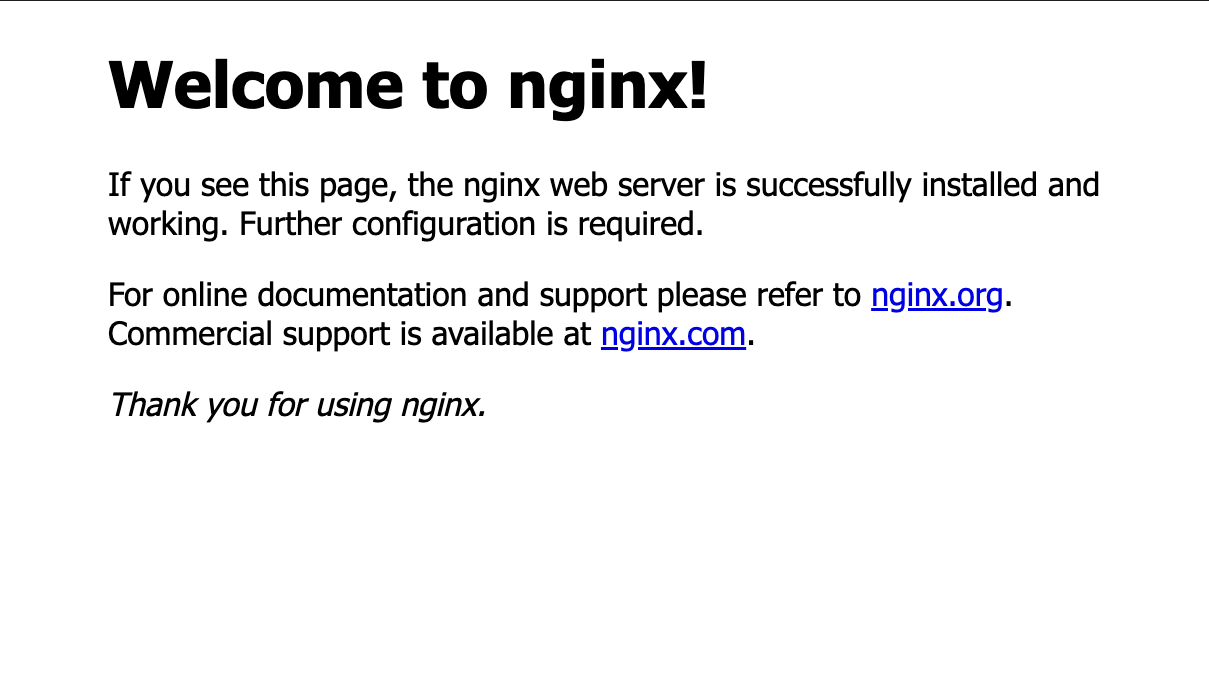
今後
今回、おうちkubernetes基盤を構築してnginxを動かすところまではできたが、悲しいことに肝心の動かしたいアプリが今のところ思いついていないので、もし適当なアプリを作るときは次はkubernetesで動かそうと思う。もし誰か面白そうなアイデアを思いついたら教えて欲しい。